What Stoqro does
One app for the office and the field: where every item is, what's due for test & tag, and the labels that tie it together. Every feature is on every plan.

Where's my gear
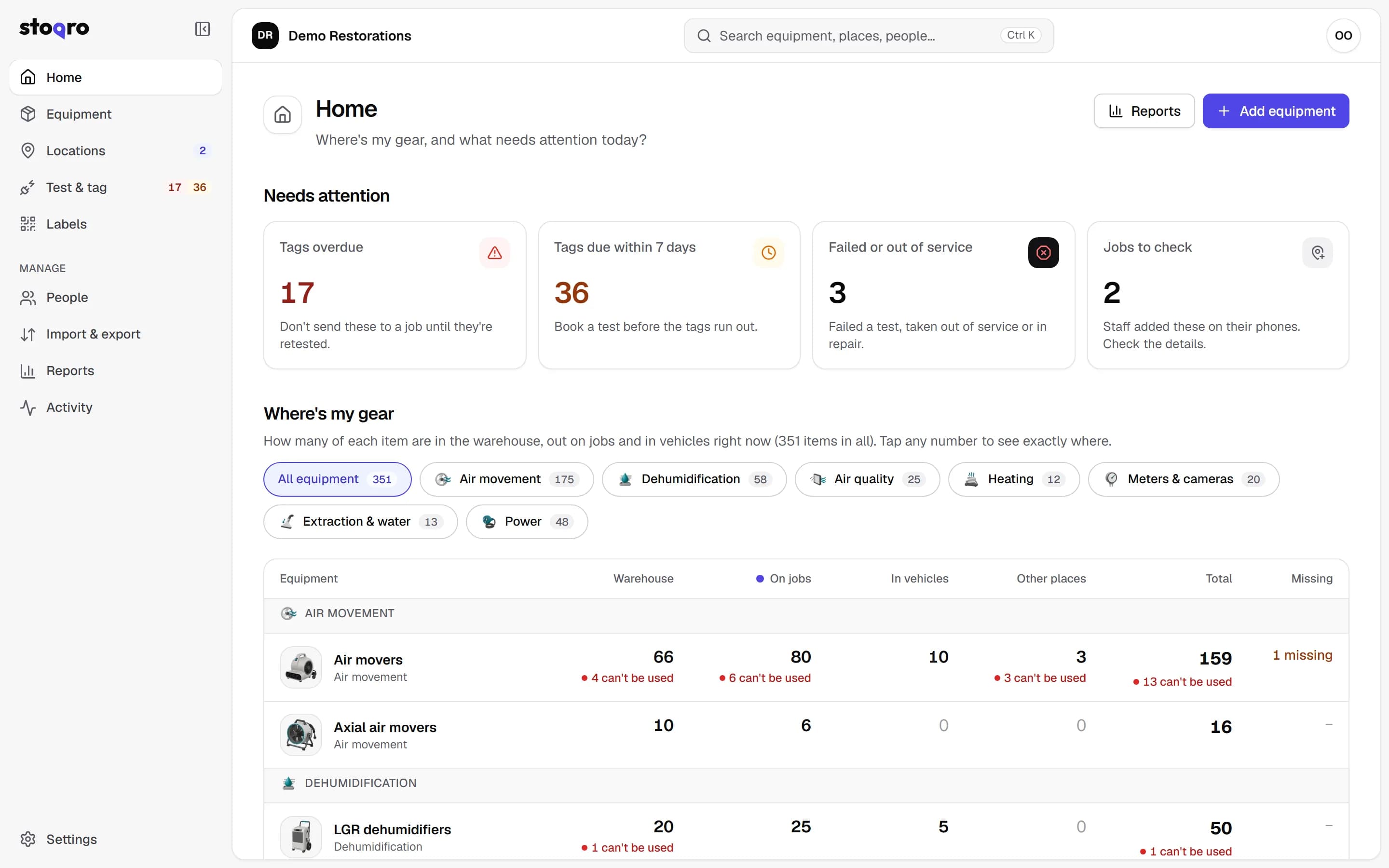
The dashboard answers the question the office asks all day: how many of each item are where, right now.
- Counts per type of item: warehouse, on jobs, in vans and other places. They always add up to the total.
- Every number opens the list behind it: which jobs, how many on each and for how long.
- A red “can't be used” figure for failed, overdue and out-of-service items, and a separate missing figure.
- Needs-attention tiles for tags overdue or due soon, failed gear and jobs staff added on their phones.
- Recent activity, written as plain sentences: “Sam moved 2 air movers to Van ABC·123”.
Every item, in one list
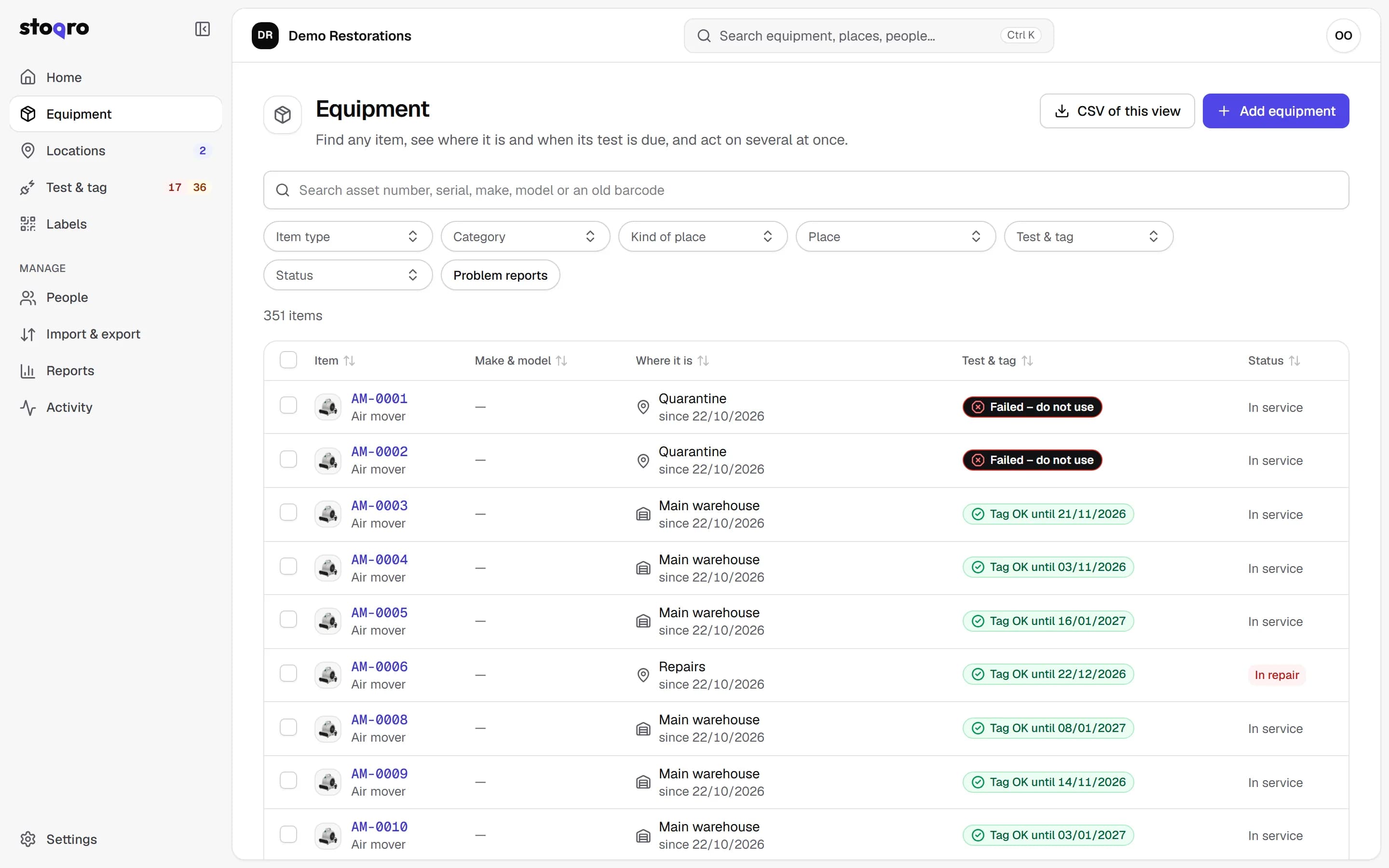
Find any item in seconds, see where it is and when its test is due, and act on several at once.
- Search by asset number, serial, make, model or an old barcode.
- Filter by type, category, place, test & tag status or problem reports.
- Tick several and move them, print their labels, set due dates from their existing tags, change their type or retire them.
- Each item's page tells its whole story: every move, test, label and status change, in plain English.
- Add one item, a batch of the same kind with numbers made for you, or stick labels on first and add items by scanning.

Phones for the field
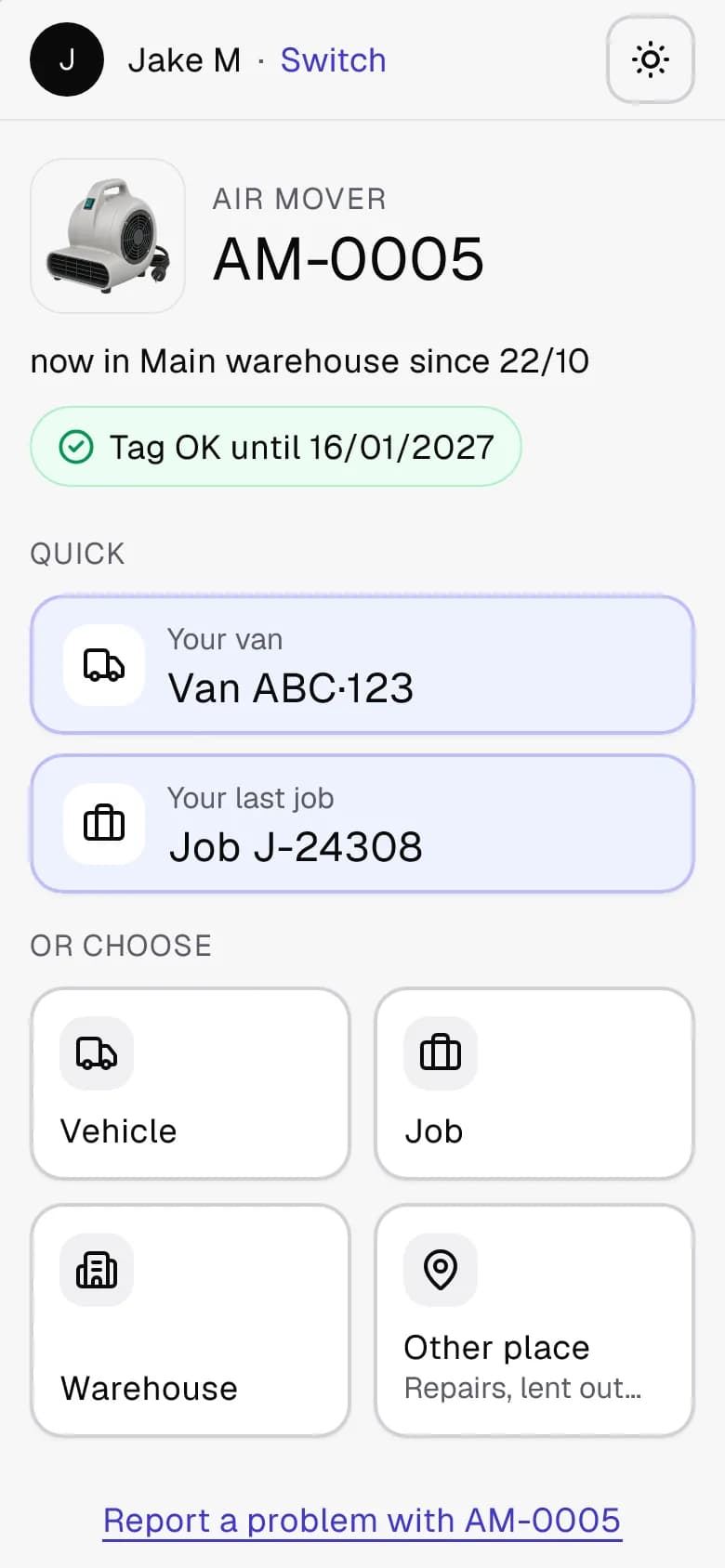
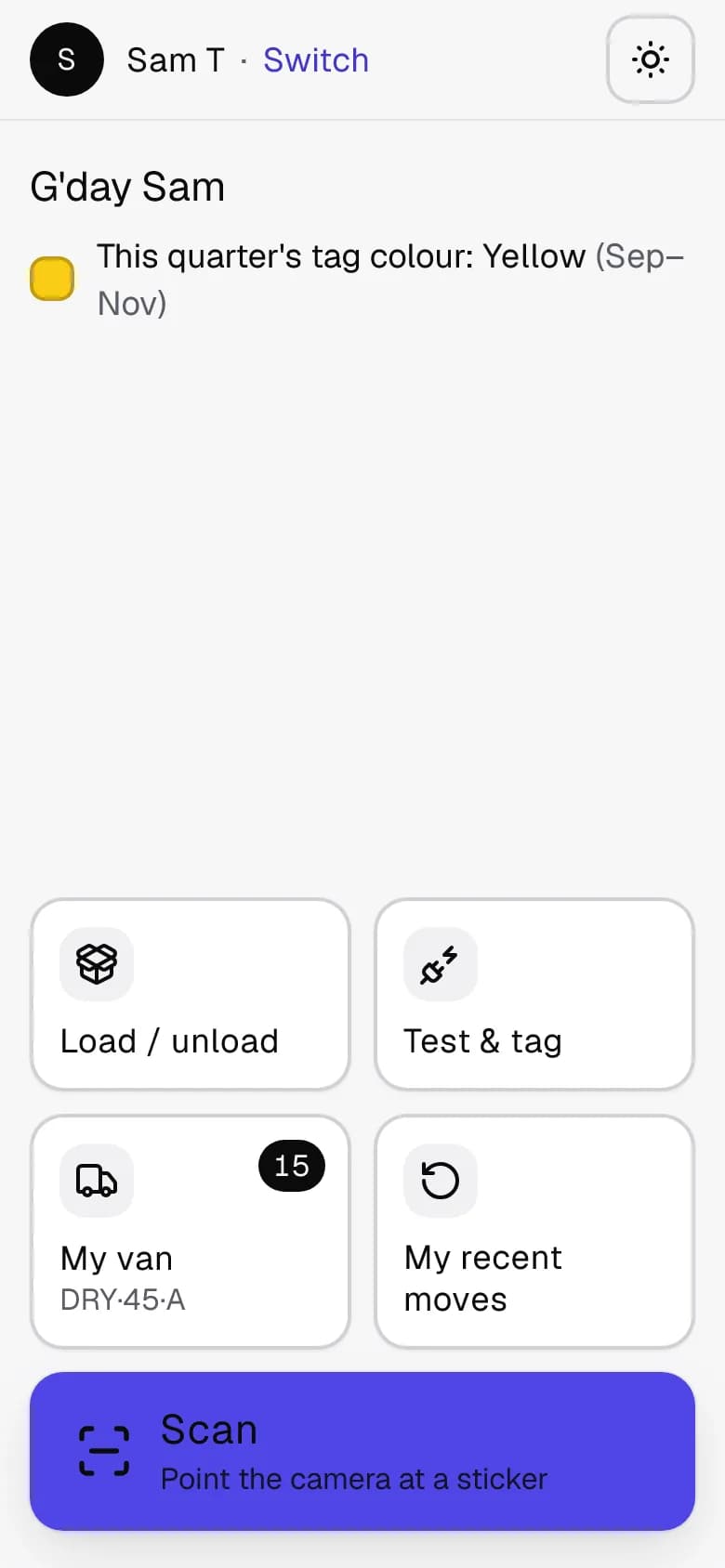
Big buttons, plain words and no app to install. Built for gloves, sunshine and patchy signal.
- Scan a sticker with the phone's camera, tap where it's going, done. Every move has an Undo button.
- One-tap choices for your own van, your last job or back to the warehouse.
- Type a new job number on the spot. Near-duplicates are caught and the office gets to check it.
- Load or unload a whole van by scanning item after item, then moving them all at once.
- Clear warnings before overdue or failed gear goes to a job or into a van.
- No signal? Moves are saved on the phone and sent when it's back.
Labels and printing
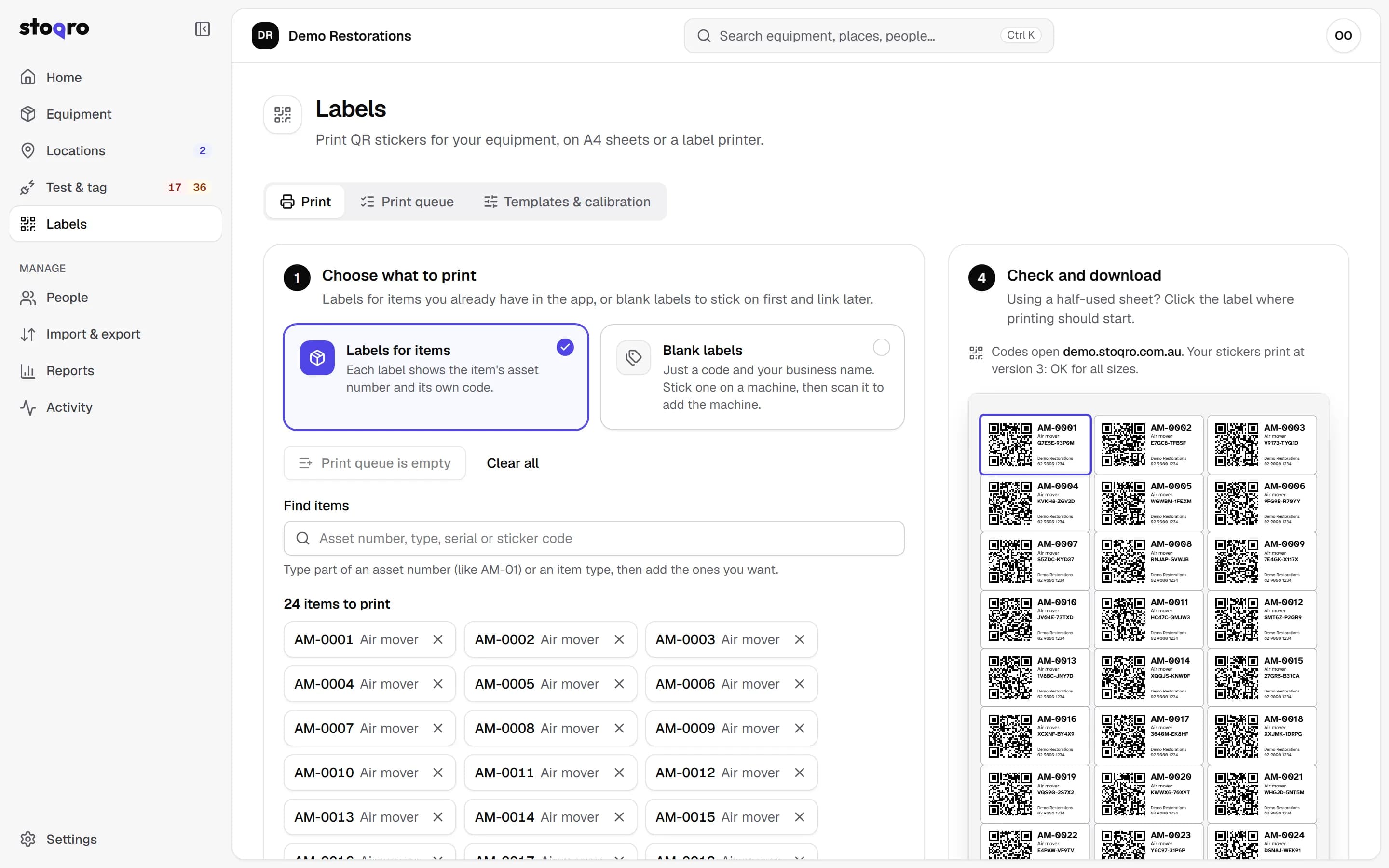
QR stickers made at exactly the right size, for the printer you already have.
- A4 Avery sheets on a laser printer, including heavy-duty polyester (L4773, the default) and weatherproof sheets.
- Label printers: Brother P-touch (24 and 36 mm tape) and QL, Dymo Durable, and Zebra in three sizes, plus your own size.
- Start at any label on a half-used sheet, line things up with a calibration page, and preview before you print.
- Blank labels to stick on first and link later. Reprints keep the same code; reissue when a sticker is lost.
- A staff poster for the warehouse wall, and “out of service” labels for failed gear.

Test & tag
Every due date in one place, and a test day recorded for just the items that were tagged.
- A due list grouped by month, with filters for overdue, due soon, failed and no test date.
- Tick the tested items and record the test for just those, or scan each item on a phone as it's tagged.
- Failed items can go straight to quarantine, and show “Failed – do not use” until they pass again.
- Intervals per item type, the Australian quarterly tag colours, and a register to export as a spreadsheet or PDF.


Places, vans and jobs
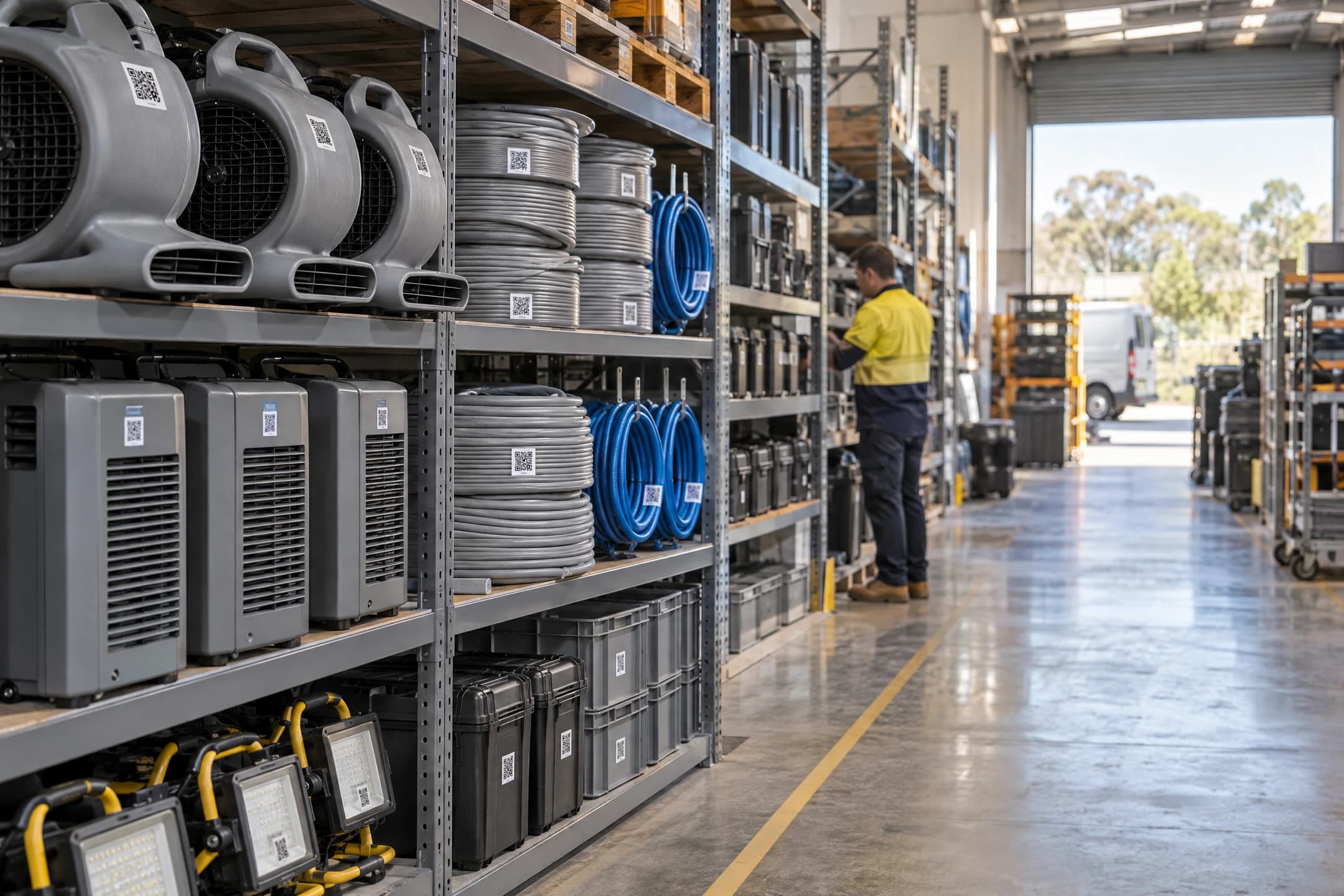
Set up the places gear can be once, and staff pick from them.
- Warehouses, with one marked as home for “back to the warehouse”.
- Vans by number plate, each with its usual driver.
- Jobs by number, with an address. Merge a typo into the right job, and close a job by bringing everything back.
- Other places like Repairs, Quarantine and Lent out (with a note saying who has it), plus your own.

Alerts that arrive on time
An email of what's due, so nothing runs out unnoticed.
- Daily or weekly, at a time you choose, in your own time zone.
- Warned as far ahead as you like: 7, 14 or 30 days, or your own number.
- Items grouped by where they are now, so the right person can round them up.
- Send yourself a test email any time, and see every email that went out.

Reports and history
Numbers that help you invoice and find what's missing.
- Equipment-days per job, worked out from the scans, for invoices.
- Gear not seen lately, so forgotten items turn up, and gear that's been on a job for a long time.
- Moves by person, and how much each type of item is out working.
- An activity log of every move, test and change, with a spreadsheet download.
Import and export
Start from the spreadsheet you already have, and take everything with you any time.
- Import CSV or Excel files: match columns, match values, preview, then import.
- Dates are read strictly as dd/mm/yyyy and shown back to you before anything is saved.
- Undo an import for 7 days.
- Export any list, the test & tag register, or everything at once as a ZIP file.

People and access
Unlimited people on every plan, each with the right access.
- Office roles: Owner, Admin, Office and Viewer, each explained in one sentence.
- Field staff sign in with their name and a 4-digit PIN on a phone that remembers them.
- Reset a PIN, sign a lost phone out straight away, or give someone the right to record test & tag.
- Two-step sign-in for office logins.


Your own web address
Your team signs in at your own address, and your stickers can carry it.
- Every business gets yourname.stoqro.com.au.
- Point your own domain at your panel if you'd like to.
- Choose which address your stickers use. Older stickers keep working.
Wondering how your data is looked after? Read about security.
Give it a go with your own gear.
Sign up, print a sheet of stickers and scan your first machine. It's free for 30 days with up to 200 items, and there's no card to enter.
Rather have us show you around? Book a walk-through